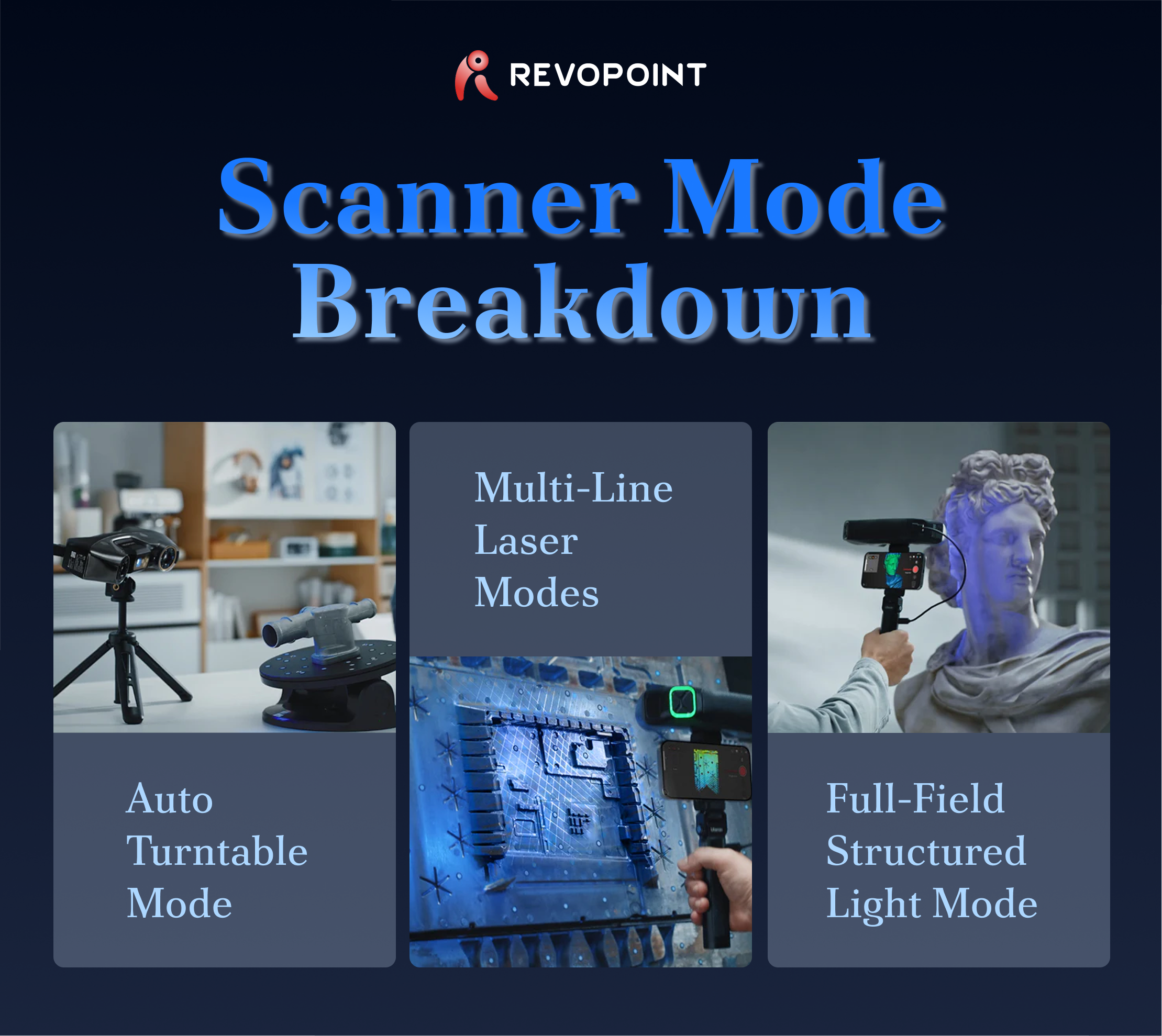
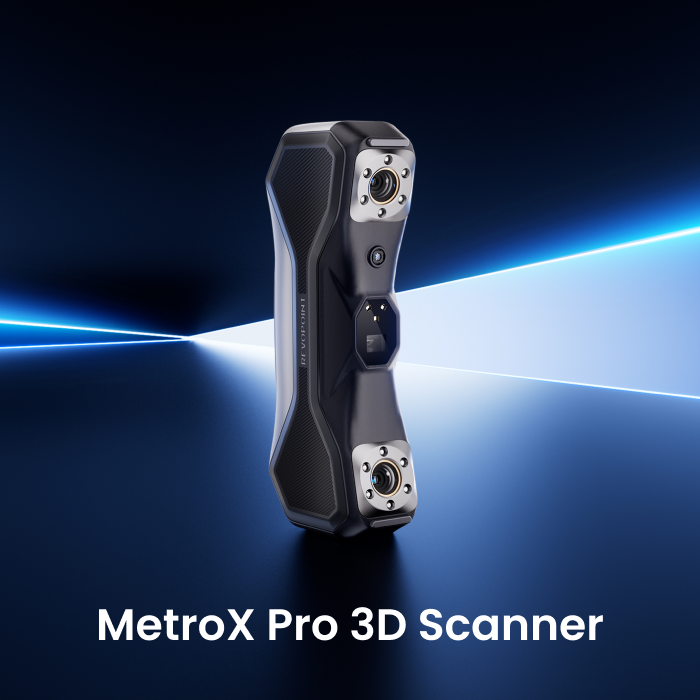
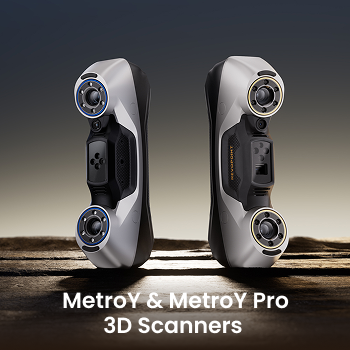
Whether you're scanning for reverse engineering, design, or 3D modeling, choosing the right mode makes all the difference. Here's a breakdown of the scanning modes available on MetroX, MetroX Pro, MetroY, and MetroY Pro—and what each one does best.
|
|
Multi-Line Laser Modes
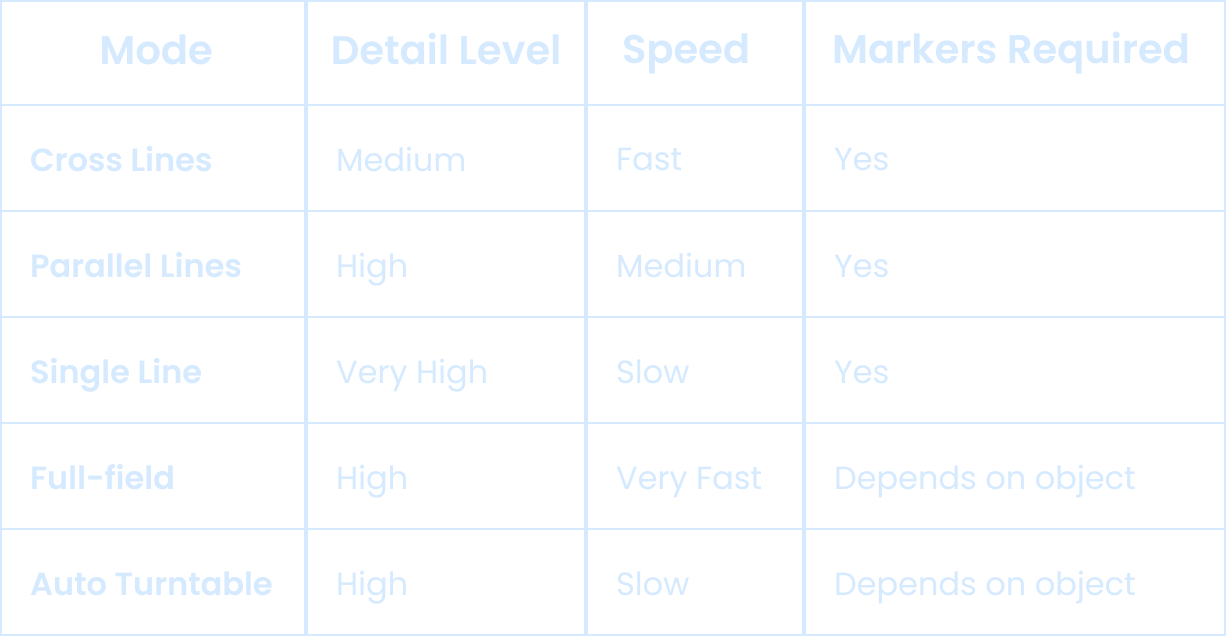
Note: Markers are required for all laser scanning modes.
|
|
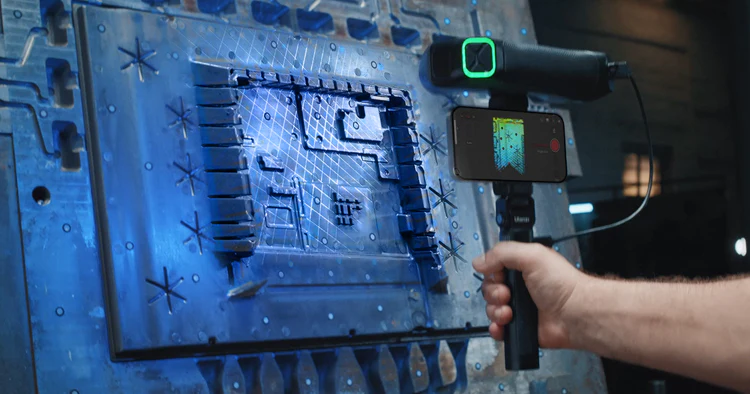
Cross Lines Mode
Projects 14 to 34 intersecting blue laser lines for fast capture of large, low-feature surfaces like smooth plastic, machined metal, or flat plates.
|
|
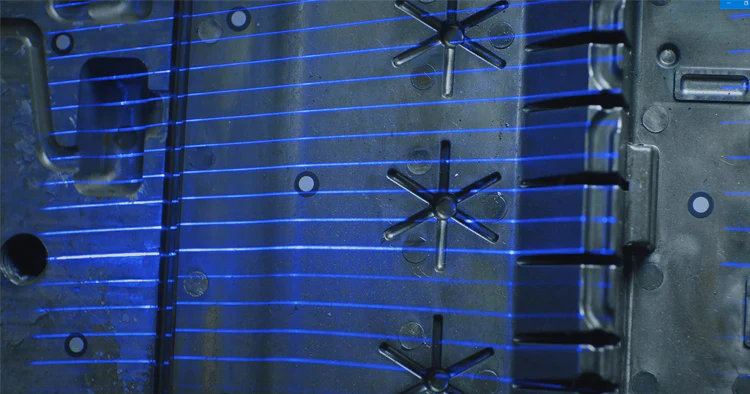
Parallel Line Mode
Uses 7 to 15 parallel blue laser lines to capture complex geometry and fine details with less noise and better edge definition.
|
|
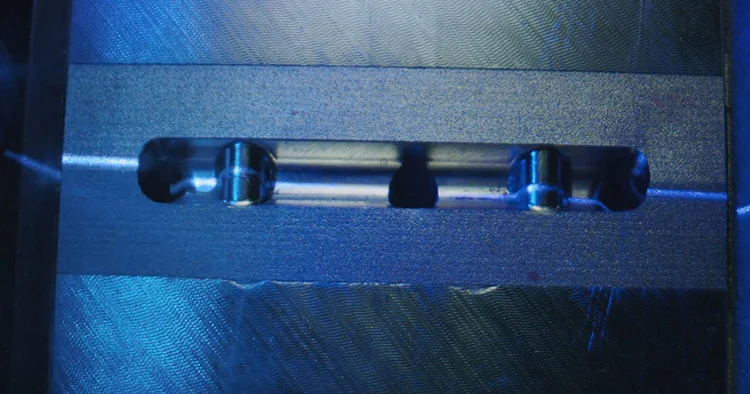
Single Line Mode
A single powerful laser line for scanning deep holes, crevices, and extremely fine details with minimal noise.
|
|
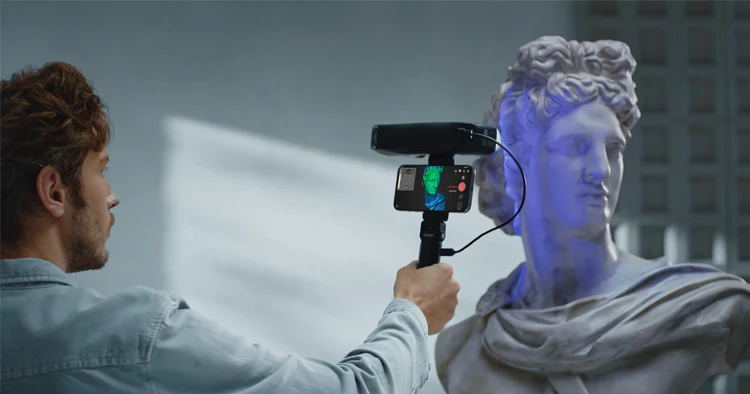
Full-Field Structured Light Mode
The fastest mode—up to 7 million points per second. Ideal for feature-rich objects like statues, figurines, or tools without markers.
|
|
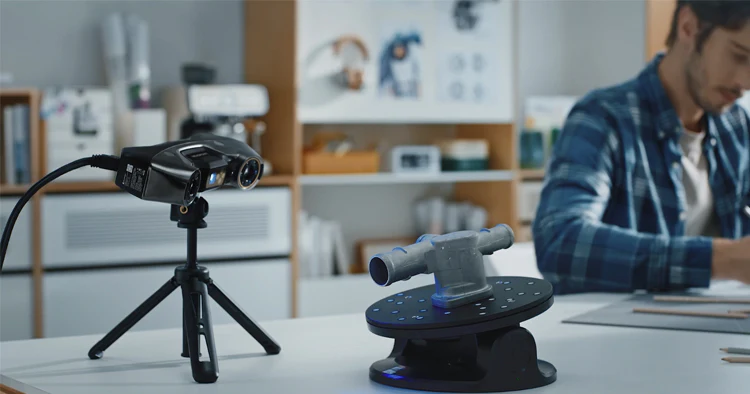
Auto Turntable Mode
Pairs with the Dual-axis Turntable for automated 360° capture. The turntable rotates and tilts to expose uncaptured areas while the scanner captures frames at set intervals.
|
|
Understanding your scanner's modes is the first step to better scans. For tutorials and walkthroughs, visit Revopoint's YouTube channel.
|
|
Read our complete guide for detailed troubleshooting tips and advanced techniques to elevate your 3D scanning workflow.
|
|
|
|
|