|




I used to get mediocre results from Claude Cowork.
The tool wasn’t broken. My workspace was.
Most people open Cowork and do this: open a folder → write a prompt → hope for the best
Sometimes it works. A lot of times, it doesn’t.
And that’s not Cowork’s fault. Cowork is stepping into your workspace with zero context, no rules, and no clear way of working.
So it starts improvising.
It doesn’t know what tone to use.
It doesn’t know what it should never assume.
It doesn’t know what files it must always read.
That’s why so many people try it and walk away thinking it feels like just another chat … just with file access.
In this guide, we’ll fix that. I’ll show you a simple system that gets the most out of Cowork.
By the end of this guide, you’ll have:
A system that gives Cowork the context it needs to stop improvising
How to use this system with 3 real-world examples
How to prompt this system (spoiler: you’ll need short prompts — the system does the heavy lifting)
No coding. No complex setup. Just a structure that works.
Click here to read my best Claude guides
This is the best Cowork guide I’ve written so far. I almost made it paid, but chose to keep it free because it gives you everything you need to get the most out of Cowork.
From here on, I’ll be publishing one paid guide and one free guide each week. Become a paid subscriber today so you never miss the full series! 👇
Cowork doesn’t need more prompts. It needs a system
If you come from the chat world, this makes sense: write a better prompt, get a better result.
In Claude Cowork, that is no longer the main piece. The workspace is.
Because Cowork does not just work with what you type into a text box. It works with what it can read inside the folder you give it access to:
- your project files
- your working rules
- your context
- your preferred way of communicating
- your prior drafts
- your examples of success
You need to turn the way you work into a small, reusable system.
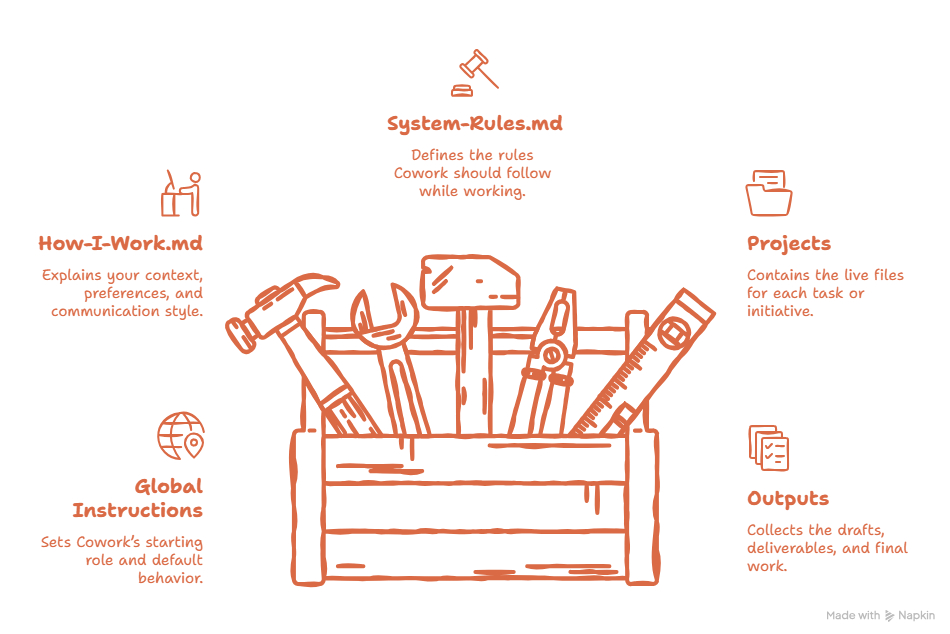
Here’s an overview of the system we’ll build:
 |
That jump looks small. It isn’t.
Because the moment your way of working lives in files, Cowork stops starting from zero every time. When that happens, the results stop feeling generic and start feeling like “this thing already knows how I work.”
Quick Cowork Recap: Installation
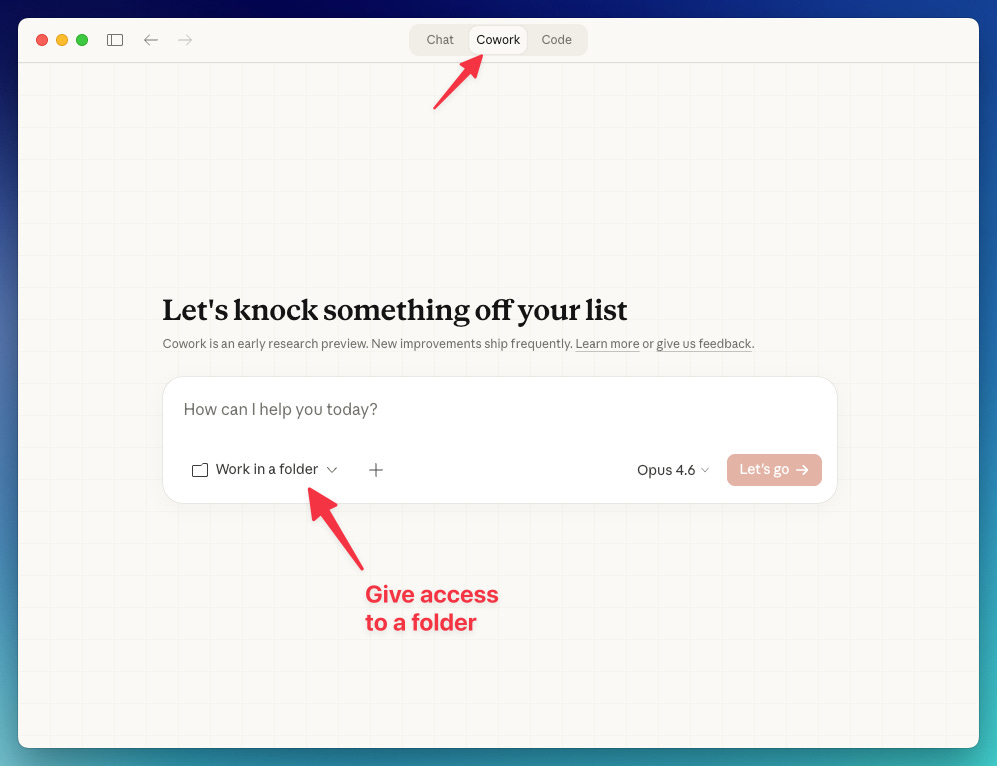
To use Cowork, you need to download Claude for desktop:
Go to claude.com/downloads → download Claude Desktop → install it → sign in
Once it's installed, select Cowork. That's it. You're in.
 |
Quick setup: Add Global Instructions
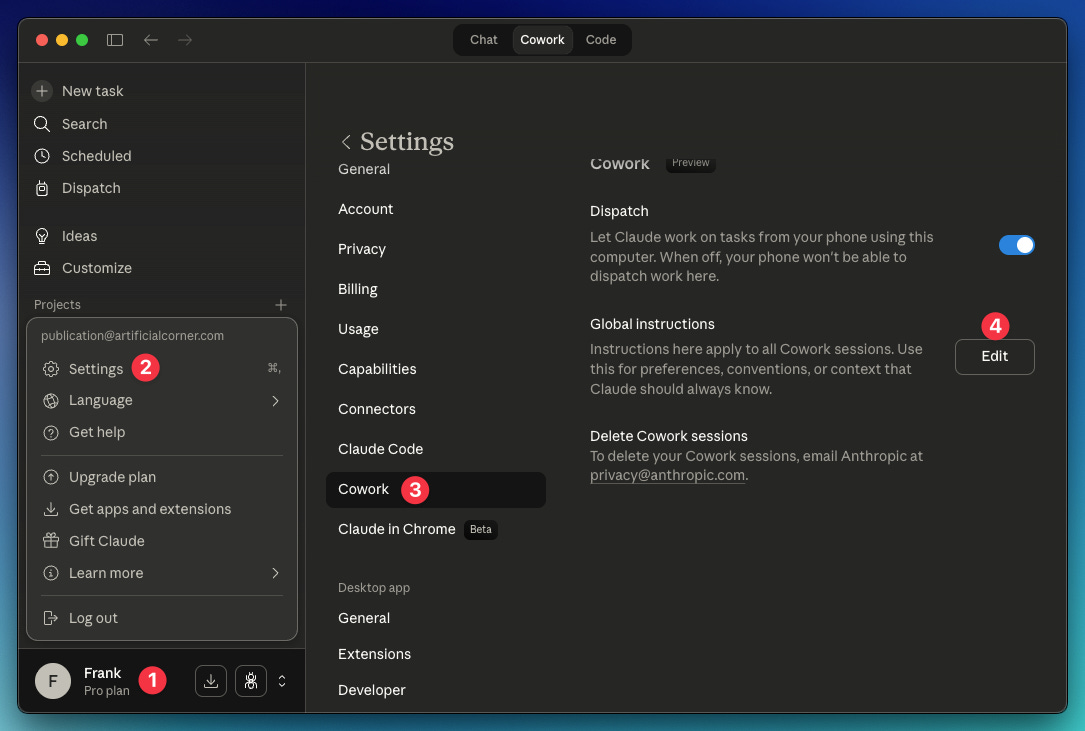
Global instructions is where you set the default behavior Cowork should bring into every session. Do this:
Open profile menu → Settings → Cowork → Add your Global Instructions → Save
 |
Copy these global instructions:
You are my working partner inside