Design perfectly aligned content easily, with SmartBlocks

Hey there, niepodam
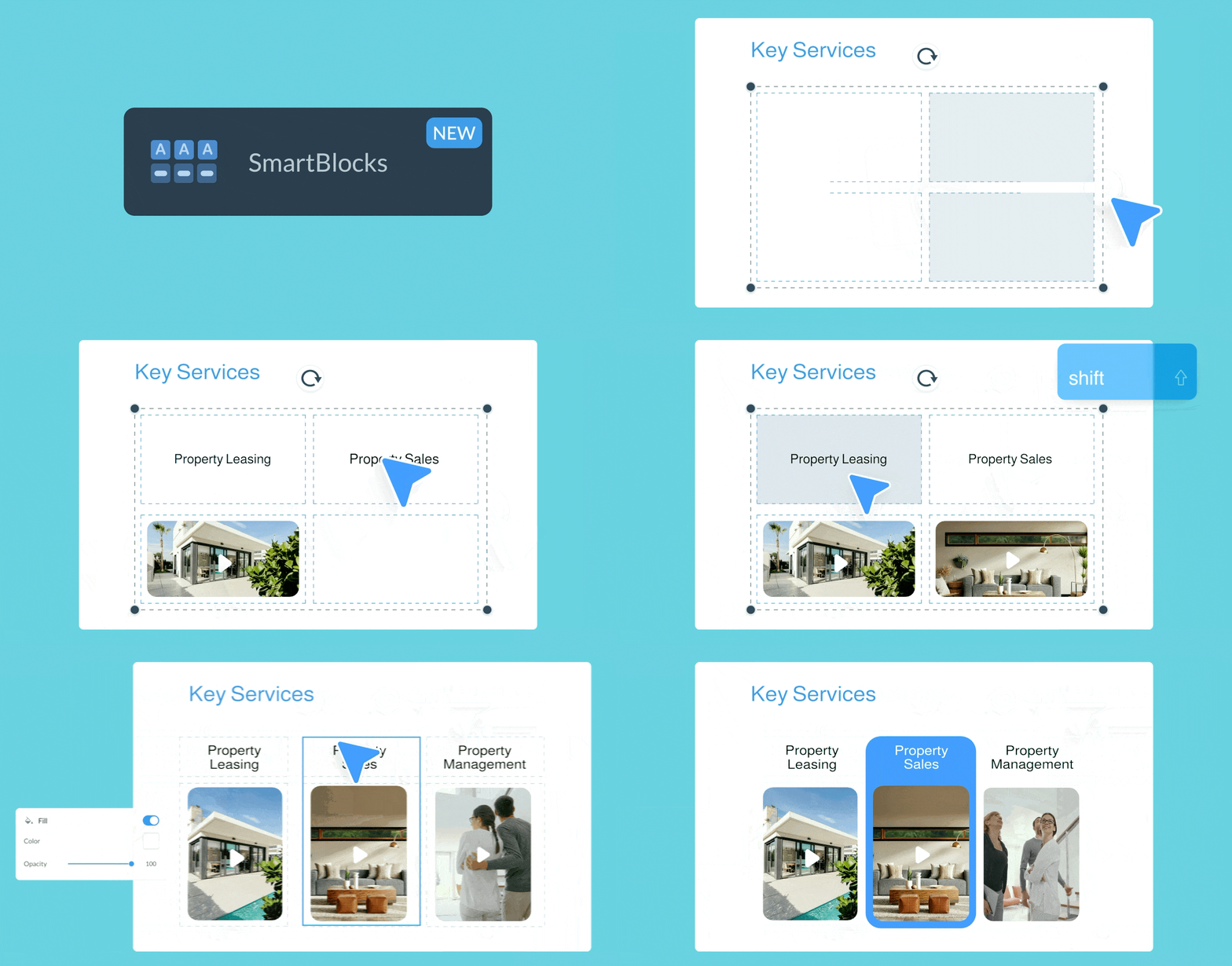
If you've ever nudged a text box trying to line it up with the image below it, or watched your whole slide fall apart after resizing an element, then this new feature is right for you.
Meet SmartBlocks!
A brand-new layout system built directly into the Visme editor, and it's available to use right now.
Perfectly aligned designs. Zero manual adjusting.
So why SmartBlocks? You save time and preserve your sanity. A Win win!
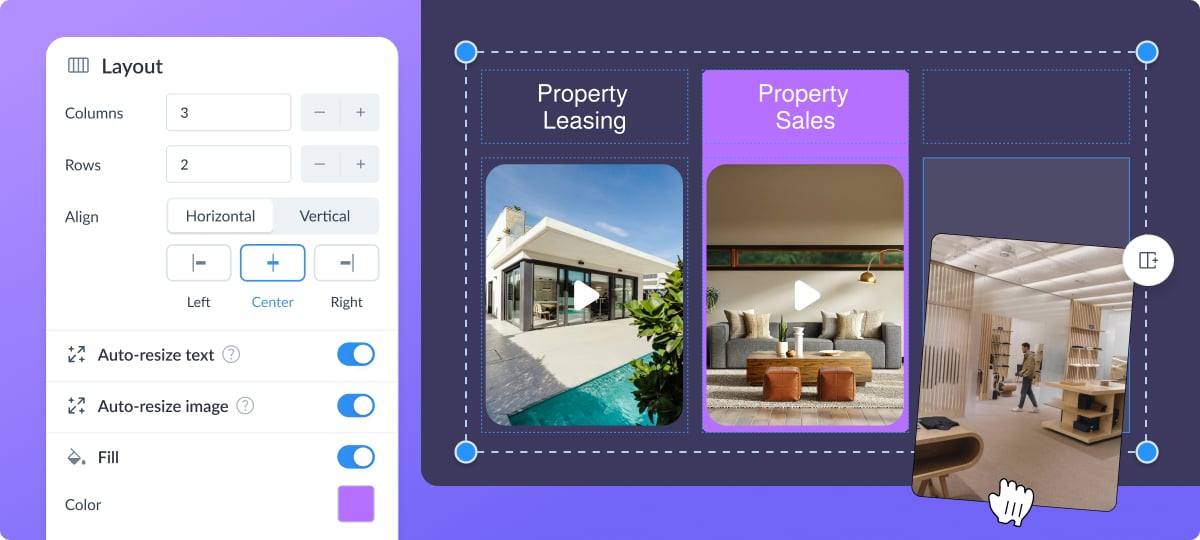
SmartBlocks is an intuitive row-and-column layout system that helps you create perfectly aligned and balanced designs. When you drag a blank grid or a preset into your canvas, object alignment takes care of itself. No more dragging elements around trying to get them to line up.
SmartBlocks work on all plans and across all project types, including documents, presentations, infographics, video, social media graphics and more. It’s also available on all subscription plans.
Full control over your layout
Need to move a row? Just drag it.
Want to combine two cells into one? Select them and merge. And if you change your mind, split them back just as easily. You can also grab the move icon to shift content from one cell to another.
Everything you need for customizing columns, rows, padding, gaps, and alignment is in one place in the left panel.
Fine-tune without breaking your design
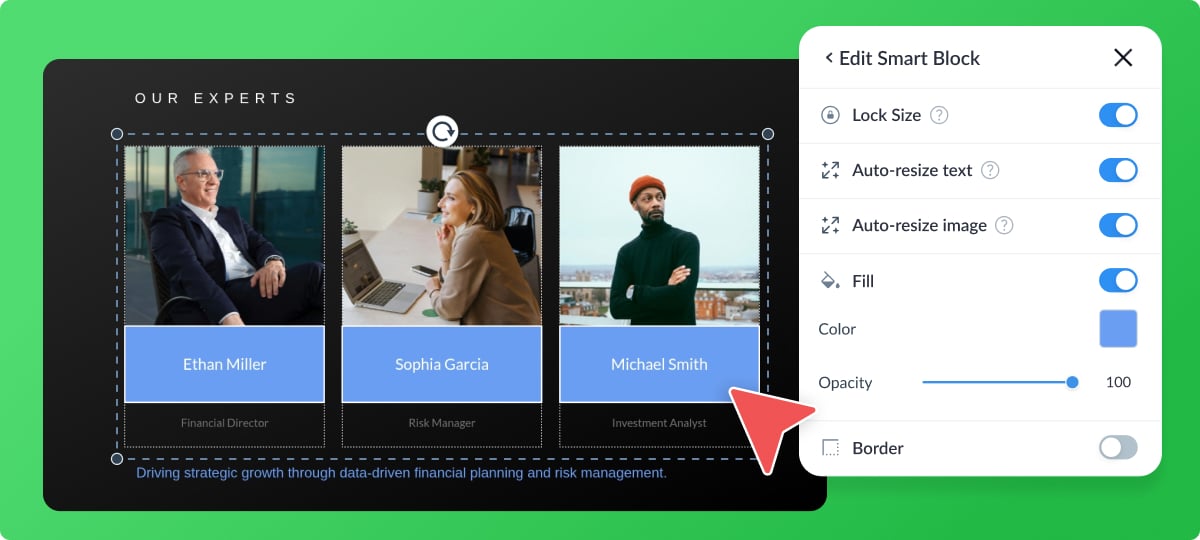
When you resize a block, Auto-resize text scales the font proportionally with it.
If you'd rather keep a fixed size, just toggle it off. Same goes for images: Auto-resize image fills the cell and lets you reposition the crop however you like.
You can also set background colors and borders per cell or across a selection. And if you want the block to maintain its size as you add rows or columns, Lock Size has you covered.
Start from a preset or build from scratch
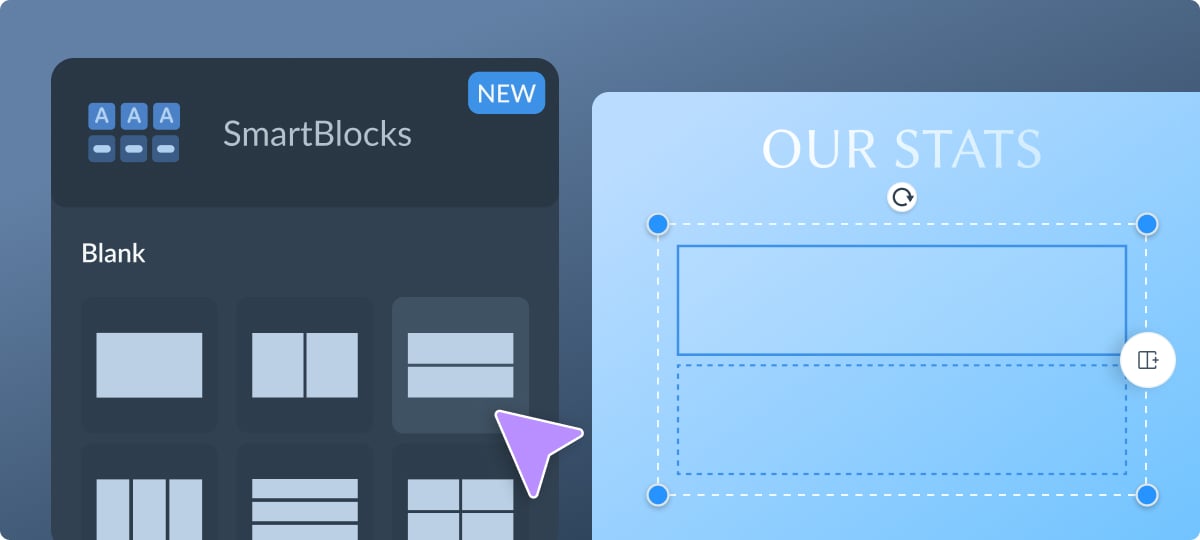
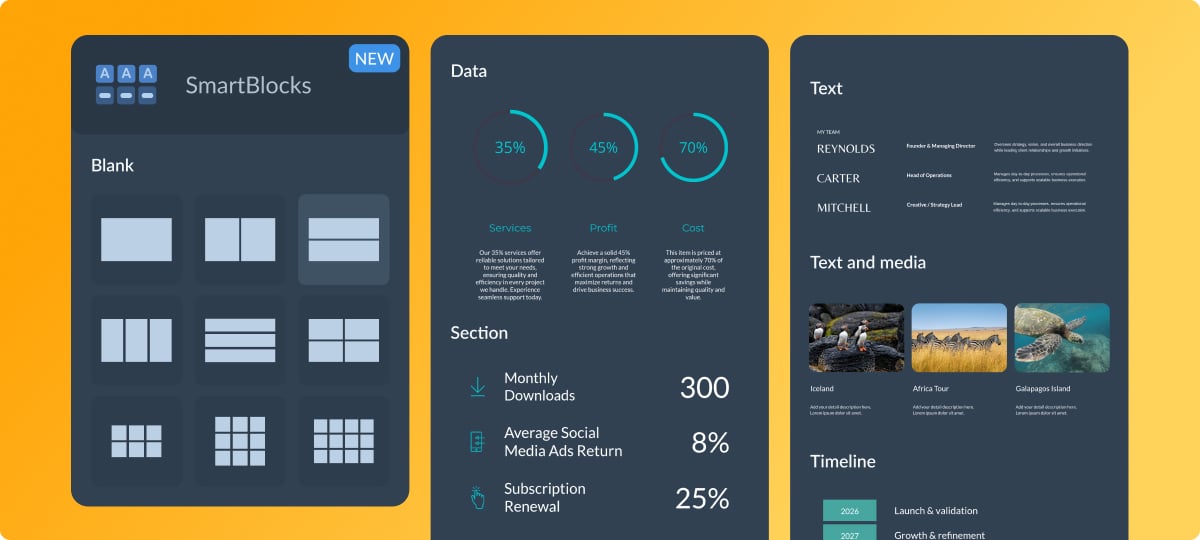
Whichever way you prefer to work, you’ve got the perfect building blocks:
• Blank grids for building from scratch
• Data presets with charts, percentages, and widgets
• Section presets for full-width content blocks
• Text presets for titles, body copy, and labels
• Text and media presets pairing copy with image or video placeholders
• Timeline presets for step-by-step sequential content
Try SmartBlocks today!
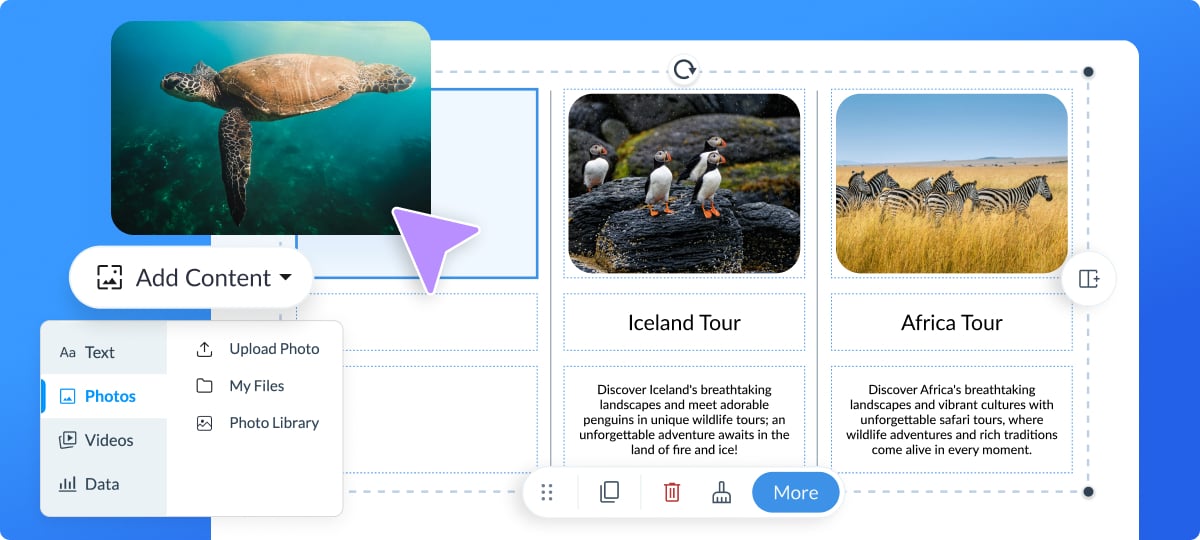
Open any project in your Visme editor, navigate to Basics in the left panel and open SmartBlocks.
Choose the type of block you’d like to use and either click on it or drag it onto the canvas. Then you can customize the blocks with your own content, visuals and style.
Or press the button below to try it right away.
Log in to your Visme account and try out the SmartBlocks today!
Victoria, Organic Growth Manager
Create anything. Make it beautiful.