|
How to Turn Claude into a 24/7 Employee (It Has Automated My Work)
Scheduled tasks is the best thing that happened to Claude in the past few months
|

| |||||||||||||||


I’ve been obsessed with automation since I learned to code.
I used to spend hours writing scripts to automate the web, Excel reports, etc.
Thanks to Claude, now anyone can do this in minutes without writing code!
The best part? You can schedule tasks directly in Claude, so it runs them automatically on a recurring basis. Set it once and it just works, while you focus on everything else.
In this guide, I’ll show you step by step how to use Claude to schedule tasks like:
Weekly research: Track topics, competitors, or industry news
Daily reports: Compile data from spreadsheets into a formatted summary
Daily file organizer: Sort and clean up files in your downloads folder
For this, we’ll use two tools: Claude in Chrome to automate the web, and Claude Cowork to automate your files.
Twice a week, I share the best ways to get more out of Claude.
Click here to read our best Claude guides
and consider becoming a paid subscriber if you like my Claude guides 👇
Claude in Chrome: Automate the Web
Claude in Chrome is a Chrome extension that automates the web. To work with it, follow these steps:
Open Google Chrome
Go to Claude in Chrome → Click “Add to Chrome” to install
Sign in with your Claude account
Grant permissions so Claude can interact with your browser
The Claude icon will appear in your Chrome toolbar. Click it to open Claude in a side panel that stays visible while you browse.
Anything that involves repetitive web actions can be automated with this extension.
Just click the Claude sidebar while browsing any site, describe the task, and Claude will control your browser until it’s done.
Here’s one way Claude in Chrome has automated my work.
Every week, I track which Substack newsletters break into the top 200. I analyze what's working and spot potential collaborations.
To get data for my analysis, I have Claude scrape Reletter’s Substack charts with this prompt:
Build a table with the following columns for the first 250 elements in the table:
Ranking
Newsletter
Date (today’s date)
Type = free/paid
Give me a link to download the file in csv format
Here’s a video demo.
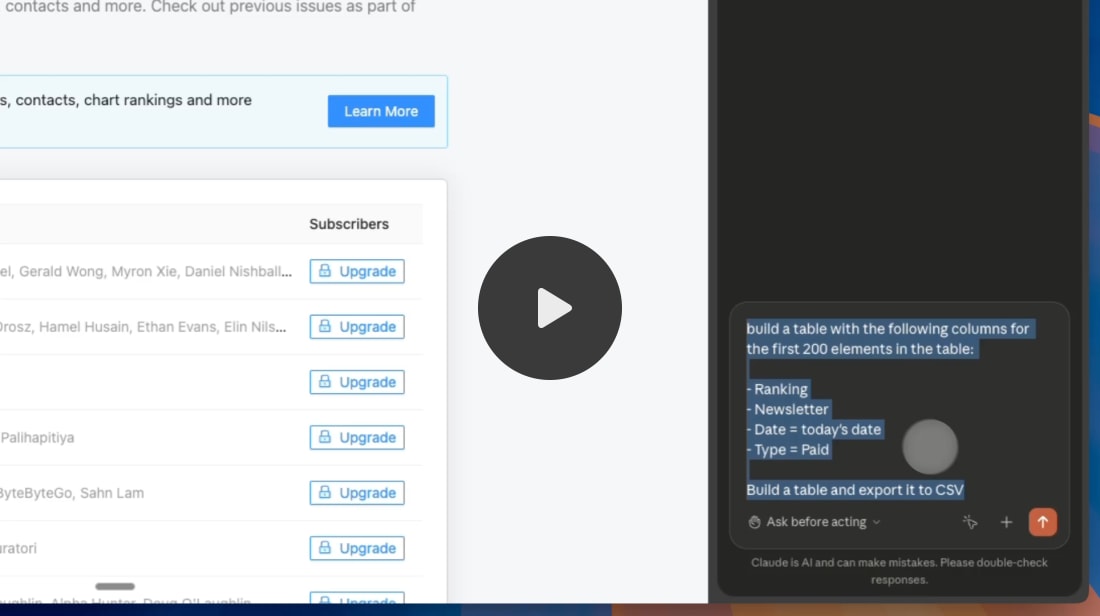
If you do this manually (clicks, copy-paste, etc), it takes forever. With Claude, it takes a couple of minutes.
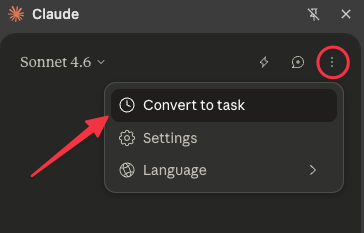
It gets even better with the scheduled tasks feature. You can turn a prompt that works into a task that runs any time you want. Just click the three dots (at the top of the chat) and select “Convert to task.“
 |
You’ll be redirected to the Claude in Chrome settings with the window below. Mine is empty, but if you clicked on “convert to task,“ the fields should be automatically filled based on your prompt.
Claude might tweak your prompt to make it more robust. Review it and adjust if necessary. Also, toggle on “schedule” and pick when the task should run.
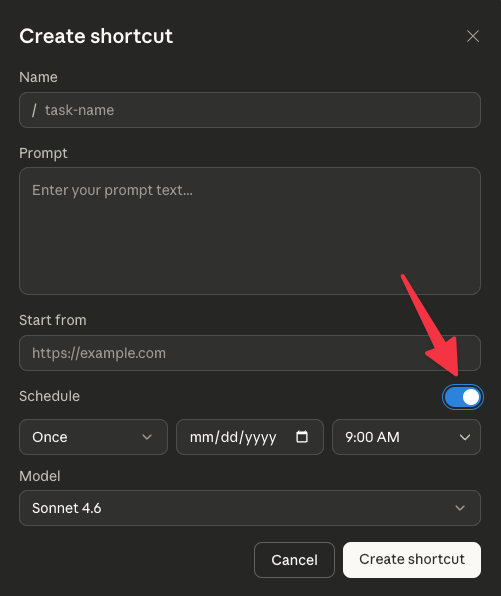 |
Once you’re happy with it, click on “Create shortcut.“
To edit a shortcut later: Go to Claude in Chrome settings (under the three dots) → Settings → Shortcut
You’ll see all your scheduled tasks listed there. I schedule mine to run every Tuesday.